The architecture of Oracle Data Integrator relies on different components that collaborate together, as described in Figure: Functional Architecture Overview
Repositories
The central component of the architecture is the Oracle Data Integrator Repository. It stores configuration information about the IT infrastructure, metadata of all applications, projects, scenarios, and the execution logs. Many instances of the repository can coexist in the IT infrastructure. The architecture of the repository is designed to allow several separated environments that exchange metadata and scenarios (for example: Development, Test, Maintenance and Production environments). In the figure above, two repositories are represented: one for the development environment, and another one for the production environment. The repository also acts as a version control system where objects are archived and assigned a version number. The Oracle Data Integrator Repository can be installed on an OLTP relational database.
The Oracle Data Integrator Repository is composed of a master repository and several Work Repositories. Objects developed or configured through the user interfaces are stored in one of these repository types.
There is usually only one master repository that stores the following information:
Security information including users, profiles and rights for the ODI platform
Topology information including technologies, server definitions, schemas, contexts, languages etc.
Versioned and archived objects.
The Work Repository is the one that contains actual developed objects. Several work repositories may coexist in the same ODI installation (for example, to have separate environments or to match a particular versioning life cycle). A Work Repository stores information for:
Models, including schema definition, datastores structures and metadata, fields and columns definitions, data quality constraints, cross references, data lineage etc.
Projects, including business rules, packages, procedures, folders, Knowledge Modules, variables etc.
Scenario execution, including scenarios, scheduling information and logs.
When the Work Repository contains only the execution information (typically for production purposes), it is then called an Execution Repository.
User Interfaces
Administrators, Developers and Operators use the Oracle Data Integrator Studio to access the repositories. This Fusion Client Platform (FCP) based UI is used for administering the infrastructure (security and topology), reverse-engineering the metadata, developing projects, scheduling, operating and monitoring executions.
Business users (as well as developers, administrators and operators), can have read access to the repository, perform topology configuration and production operations through a web based UI called Oracle Data Integrator Console. This Web application can deployed in a Java EE application server such as Oracle WebLogic.
ODI Studio provides four Navigators for managing the different aspects and steps of an ODI integration project:
- Topology Navigator
- Designer Navigator
- Operator Navigator
- Security Navigator
Topology Navigator
Topology Navigator is used to manage the data describing the information system's physical and logical architecture. Through Topology Navigator you can manage the topology of your information system, the technologies and their datatypes, the data servers linked to these technologies and the schemas they contain, the contexts, the language and the agents, as well as the repositories. The site, machine, and data server descriptions will enable Oracle Data Integrator to execute the same interfaces in different environments.
Designer Navigator
Designer Navigator is used to design data integrity checks and to build transformations such as for example:
Automatic reverse-engineering of existing applications or databases
Graphical development and maintenance of transformation and integration interfaces
Visualization of data flows in the interfaces
Automatic documentation generation
Customization of the generated code
The main objects you handle through Designer Navigator are Models and Projects.
Operator Navigator
Operator Navigator is the production management and monitoring tool. It is designed for IT production operators. Through Operator Navigator, you can manage your interface executions in the sessions, as well as the scenarios in production.
Security Navigator
Security Navigator is the tool for managing the security information in Oracle Data Integrator. Through Security Navigator you can create users and profiles and assign user rights for methods (edit, delete, etc) on generic objects (data server, datatypes, etc), and fine-tune these rights on the object instances (Server 1, Server 2, etc).
Design-time Projects
A typical project is composed of several steps and milestones.
Some of these are:
Define the business needs
Identify and declare the sources and targets in the Topology
Design and Reverse-engineer source and target data structures in the form of data models
Implement data quality rules on these data models and perform static checks on these data models to validate the data quality rules
Develop integration interfaces using datastores from these data models as sources and target
Develop additional components for tasks that cannot be achieved using interfaces, such as Receiving and sending e-mails, handling files (copy, compress, rename and such), executing web services
Integrate interfaces and additional components for building Package workflows
Version your work and release it in the form of scenarios
Schedule and operate scenarios.
Oracle Data Integrator will help you cover most of these steps, from source data investigation to metadata lineage, and through loading and data quality audit. With its repository, Oracle Data Integrator will centralize the specification and development efforts and provide a unique architecture on which the project can rely to succeed.
Run-Time Agent
At design time, developers generate scenarios from the business rules that they have designed. The code of these scenarios is then retrieved from the repository by the Run-Time Agent. This agent then connects to the data servers and orchestrates the code execution on these servers. It retrieves the return codes and messages for the execution, as well as additional logging information – such as the number of processed, execution time etc. - in the Repository.
The Agent comes in two different flavors:
The Java EE Agent can be deployed as a web application and benefit from the features of an application server.
The Standalone Agent runs in a simple Java Machine and can be deployed where needed to perform the integration flows.
Both these agents are multi-threaded java programs that support load balancing and can be distributed across the information system. This agent holds its own execution schedule which can be defined in Oracle Data Integrator, and can also be called from an external scheduler. It can also be invoked from a Java API or a web service interface.
Showing posts with label odi. Show all posts
Showing posts with label odi. Show all posts
Oracle Data Integrator Architecture

Oracle Data Integrator Studio ODI 11G Features
Oracle Data Integrator provides a new IDE (Integrated development Environment) called the ODI Studio. It is developed based on JDeveloper.
It includes the several features:New Navigator Organization
- New Navigator Organization
- New Look and Feel
- Redesigned Editors
- Window Management
- Document Management and Navigation
- Improved User Assistance
The older versions of oracle data integrator have separate module interfaces for components like Designer, Topology, Operator and Security Manager. All these modules now appear as Navigators within the Oracle Data Integrator Studio window of ODI 11G version.The new Oracle Data Integrator studio is used as a replacement for all Oracle Data Integrator modules (Designer, Topology, Operator and Security Manager).Navigator organization provides the following features:· Navigators can be docked/undocked· Navigator can be hidden· Accordions group the tree views that appear in the Navigators (for example the Project and Models accordions in the Designer Navigator).· Not frequently used Accordions can be minimized to allow more room for the other tree views.· Accordions allow access to the tree view-specific actions from their toolbar menu (for example, import project from the Project Accordion in the Designer Navigator).· Tree Views objects are provided with context menus and markers the same way as in Oracle Data Integrator 10g.· Tree view objects can be dragged and dropped within a tree view or across tree views for defining the security policies. Double clicking an object opens by default the corresponding Object Editor.· Context Menus have been reorganized into groups with separators and normalized across the interface.· This feature provides a single user interface from which the user can perform all the tasks in a project lifecycle. It also provides a better productivity for the user.· Using the View menu Navigators can be docked/undocked and displayed/hidden.2. New Look and FeelThis new look and feel is customizable with the Preferences menu option. Icons are being redesigned in a new, trendy style to enhance the overall visual appeal of Oracle Data Integrator3. Redesigned EditorsFor better usability all object editors in Oracle Data Integrator have been redesigned.Main changes are:5. Knowledge Modules, Actions and Procedure editors have been redesigned in order to edit the Lines directly from the main editor instead of opening a separate editor.
- Tabs are organized as finger tabs on the left hand-side of the editor. Complex editors (as for example Interface or Package Editors) have also tabs appearing in the bottom of the editor.
- Fields have been grouped under headers. These field groups implement an expand/collapse behavior.
- Fields and labels have been organized in a standard way for all editors for a better readability of the editors.
- Text Buttons in the editors are transformed into hyperlinks, and all buttons appearing in editors have been redesigned.
4. Window Management
1. Full Docking Support:· All windows, editors and navigators can now be docked and undocked intuitively.· Fast maximize and restore: To quickly maximize a dockable window or the editor area, double-click on the title bar of the window you want to maximize. To restore the window to its previous dimensions, double-click again on the title bar.· Title bars as tabs: The tab for a dockable window (when tabbed with another dockable window) is now also the title bar. This makes more effective use of the space on the screen. Reposition a window by dragging its tab. Some additional related enhancements include a new context menu from the gray background area behind the tab, change in terminology from "auto-hide" and "show" to "minimize" and "restore", ability to minimize a set of tabbed windows with a single click, and toggling the display of a minimized window by clicking on its button.5. Document Management and NavigationObject edition has been enhanced in the Oracle Data Integrator Studio with improved document management.This includes:1. Save and close multiple editors: You can easily save all your work with a single click using the File > Save All option and close all opened editors similarly. You can also close all the editors but the current one.2. Forward and back buttons: Now you can easily return to a previously visited document with the convenient browser-style forward and back buttons on the main toolbar. These buttons maintain a history, so you can drop down the back or forward button to get a list of the documents and edit locations you have visited. Alt+Left and Alt+Right activate the back and forward buttons.3. Quick document switching: Switching between editors and navigators is also possible. Now when you press Ctrl+Tab or Ctrl+F6, you can choose which document you want to switch from a list ordered by the most recently used. You can use the same technique to switch between open dockable windows by first placing focus in a dockable window, then pressing Ctrl+Tab or Ctrl+F6.6.Improved User AssistanceOracle Data Integrator introduces intuitive new features that improve usability:· Help Center/Welcome Page: The Welcome page has been transformed into the Help Center, redesigned to provide the user with quick access to help topics and common tasks, as well as links to useful Oracle resources.· New On-Line Help: The online help has been entirely re-written for supporting the new user interface.· Help bookmarks: The Help window has a tab labeled Favorites. While browsing the help, you can click on the Add to Favorites button to add the document to this tab.
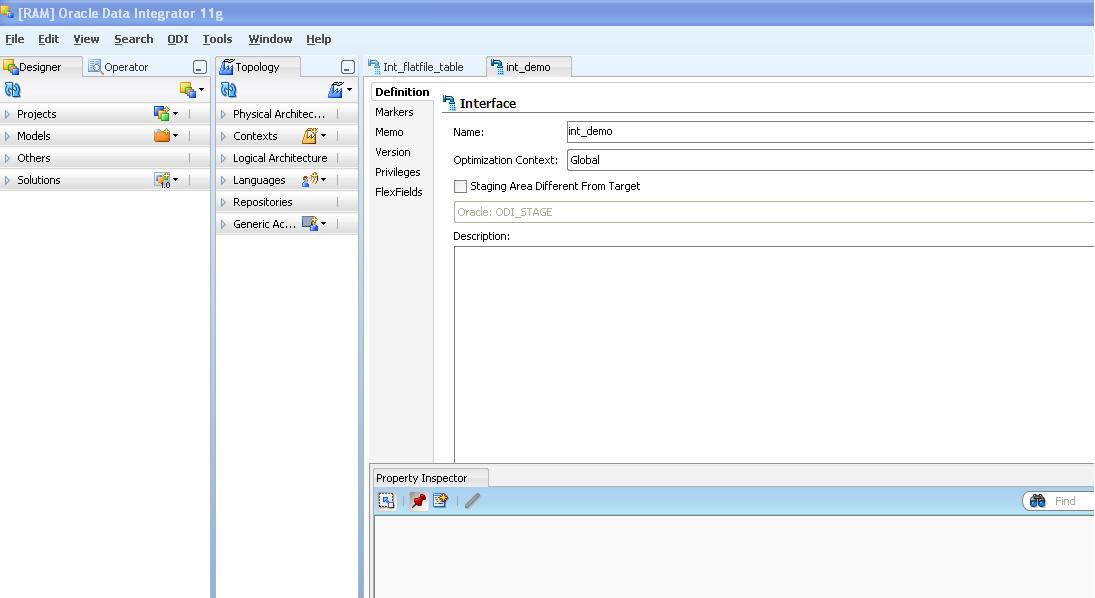


ODI Architecture Overview
Oracle Data Integrator (ODI) is a ELT Tool.Unlike an ETL Tool, ELT allows you to have a Dynamic Staging Area.You can set a Staging Area at:
- Source Level
- Target Level
- Materialized Staging Area
All this means DYNAMIC LOAD BALANCE
What is Oracle data integrator?
- It is a ELT tool
- It is an integration platform. It moves and transform information across the Information system servers
- It is a development platform. It follows business-rules driven approach and E-LT approach for developing datawarehouses.
- Using business approach the developer can focus his efforts on the business side of integration instead of focusing on the technical aspects.
- ELT means extacting , Loading and then transforming. But the traditional approach like informatica, data stage follows ETL exttracting, transforming and then loading. ODI does not run or execute the integration process by itself. It takes the advantage or help of a process that leverages existing systems.
- It has a centralized repository since it is based on metadata.
- Metadata means data about data. In other words it describes the information system and its contents. ODI centarl repository is used to store this metadata.
- It provides faster approach for integration.
- Therefore ODI is "simply Faster Integration"
Excel technology in Oracle Data Integrator
Working with Excel data in ODI is hard and named ranges have to be
created in the excel file. This is because the ODI excel technology
works on the basis of turning named ranges into datastores.
We can change the ODI standard configuration in order to manage Excel data easily as we do with other technologies.
The configuration explained above was tested in odi 10.3 and Java 1.4. The process is as follows:
We can change the ODI standard configuration in order to manage Excel data easily as we do with other technologies.
The configuration explained above was tested in odi 10.3 and Java 1.4. The process is as follows:
ODI CONFIGURATION
1.- XLSQL Excel JDBC driver is needed. This driver is completely free
and we can download it from http://sourceforge.net/projects/xlsql/
2.- Add the new driver to ODI. To do that, copy the file called xlSQL_Y7.jar (this name depends on the JDBC driver version) into the drivers directory (usually at OraHome\oracledi\drivers). Also check that a classpath is set for this folder in “odiparams.bat” file.
3.- Add the new scripting engines to work with the driver into the ODI scripting folder (usually OraHome\oracledi\lib\scripting). To do that, copy these jar files into the folder:
• commons-cli-1.0.jar
• commons-logging.jar
• crimson.jar
• hsqldb.jar
• jaxp.jar
• jconfig.jar
• jmxri.jar
• jxl.jar
• mysql-connector-java-3.0.10-stable-bin.jar
Also check that a classpath is set for this folder in “odiparams.bat” file.
4.- Close all ODI tools and restart ODI agent service.
2.- Add the new driver to ODI. To do that, copy the file called xlSQL_Y7.jar (this name depends on the JDBC driver version) into the drivers directory (usually at OraHome\oracledi\drivers). Also check that a classpath is set for this folder in “odiparams.bat” file.
3.- Add the new scripting engines to work with the driver into the ODI scripting folder (usually OraHome\oracledi\lib\scripting). To do that, copy these jar files into the folder:
• commons-cli-1.0.jar
• commons-logging.jar
• crimson.jar
• hsqldb.jar
• jaxp.jar
• jconfig.jar
• jmxri.jar
• jxl.jar
• mysql-connector-java-3.0.10-stable-bin.jar
Also check that a classpath is set for this folder in “odiparams.bat” file.
4.- Close all ODI tools and restart ODI agent service.
CREATE EXCEL FILE CONNECTIONS
1.- Open Topology Manager.
2.- Insert a new data server for Microsoft Excel technology.
3.- Write this “com.nilostep.xlsql.jdbc.xlDriver” into the driver field.
4.- Write the folder path where your Excel file will be stored into the URL field. The URL follows this format: jdbc:nilostep:excel:folderpath
2.- Insert a new data server for Microsoft Excel technology.
3.- Write this “com.nilostep.xlsql.jdbc.xlDriver” into the driver field.
4.- Write the folder path where your Excel file will be stored into the URL field. The URL follows this format: jdbc:nilostep:excel:folderpath

5.- Create a logical schema and assign it to the physical within a context.
GET FILE STRUCTURE
1.- Open designer module.
2.- Insert new model.
3.- In the definition tab, choose Microsoft Excel as the technology.
4.- In the reverse tab, select standard method.
5.- In the selective reverse tab, retrieve all the tables. The tables will be obtained in format FILE_NAME.SHEET_NAME.
6.- Click on reverse and the tables will be available in the model tree.
7.- Edit the table and define the columns data types.
2.- Insert new model.
3.- In the definition tab, choose Microsoft Excel as the technology.
4.- In the reverse tab, select standard method.
5.- In the selective reverse tab, retrieve all the tables. The tables will be obtained in format FILE_NAME.SHEET_NAME.
6.- Click on reverse and the tables will be available in the model tree.
7.- Edit the table and define the columns data types.
OPERATE WITH EXCEL DATA
The knowledge modules included in ODI work fine with Excel through
this driver. Only one issue was found when loading data from excel into a
sql server database table. This issue is that the field and table names
in the select statement must go into double quotes. For loading excel
data into a database table follow these steps:
1.- Duplicate the LKM SQL to SQL knowledge module and edit it.
2.- Select Microsoft Excel as a Source Technology in the definition tab.
1.- Duplicate the LKM SQL to SQL knowledge module and edit it.
2.- Select Microsoft Excel as a Source Technology in the definition tab.

3.- Open the load data step in the details tab.

The code below assures that table and columns names are between
double quotes just in case the table name and the source excel table
alias in the interface has the same name:
select <%=snpRef.getPop(“DISTINCT_ROWS”)%>
<%=snpRef.getColList(“”, “\u0022[COL_HEADING]\u0022″, “,\n\t”, “”, “”)%>
from “<%=odiRef.getSrcTablesList(“[TABLE_ALIAS]“,”")%>”
where (1=1)
<%=snpRef.getFilter()%>
<%=snpRef.getJrnFilter()%>
<%=snpRef.getJoin()%>
<%=snpRef.getGrpBy()%>
<%=snpRef.getHaving()%>
Also quotes can be managed following these steps:
1. Open Topology manager.
2. Edit the Microsoft Excel technology (phisical architecture)
3. Go to tab Language, column “Object Delimiter”, delete the quotes and let it with no value.
4.- Create a new interface. Drag your Excel table from the model tree into the source tables area and drag your target datastore.
5.- In the flow tab of your interface, select the new LKM created in step 3 and the IKM of your choice.
6.- Execute the interface and the Excel data will be stored in your target table.
CONCLUSION
<%=snpRef.getColList(“”, “\u0022[COL_HEADING]\u0022″, “,\n\t”, “”, “”)%>
from “<%=odiRef.getSrcTablesList(“[TABLE_ALIAS]“,”")%>”
where (1=1)
<%=snpRef.getFilter()%>
<%=snpRef.getJrnFilter()%>
<%=snpRef.getJoin()%>
<%=snpRef.getGrpBy()%>
<%=snpRef.getHaving()%>
Also quotes can be managed following these steps:
1. Open Topology manager.
2. Edit the Microsoft Excel technology (phisical architecture)
3. Go to tab Language, column “Object Delimiter”, delete the quotes and let it with no value.
4.- Create a new interface. Drag your Excel table from the model tree into the source tables area and drag your target datastore.
5.- In the flow tab of your interface, select the new LKM created in step 3 and the IKM of your choice.
6.- Execute the interface and the Excel data will be stored in your target table.
CONCLUSION
After little work of configuration and with no extra cost, using
Excel data in ODI becomes easy and gives us the possibility to operate
with Excel technology in the same way we operate with database
technology.
Installing ODI 11g, Weblogic, JDK on 64 Bit Windows
Download and install JRockit JDK 28.1.1 for 64 Bit Windows


You can download either the 64 Bit version of the Sun JDK or
alternatively the 64 Bit version of the Jrockit JDK. For this tutorial
we will be using the 64 Bit Jrockit JDK.
Install the JDK and take a note of the JDK install path (you will need this later).
Download generic Weblogic 10.3.3.
The generic WLS version
does not contain any of the platform dependent files such as a specific
JDK etc. It can be used to install on both 32 Bit and 64 Bit operating
systems. For the difference and other details refer to How To Choose The
Correct WebLogic Server (WLS) Installer For A Specific OS Hardware
Architecture Bit Level (32bit-64bit) [ID 1058925.1]
java –jar wls1033_generic.jar
During the install you are asked to point Weblogic to the 64 Bit JDK.
Download and install ODI generic for 64 bit
Download ODI 11g generic version.
Install ODI as per documentation.
In the generic installer you are prompted for the path to the 64 Bit
JDK when you launch the installer. You need to manually enter this
information.
ODI Studio not supported on 64 Bit.
As per note ID 1214428.1 ODI Studio is not supported on 64 Bit
You will need a 32 Bit JDK for ODI Studio.
Point Java Home for ODI Studio to 32 Bit JVM.
You will need a 32 Bit JDK for ODI Studio.
Point Java Home for ODI Studio to 32 Bit JVM.
64 Bit ODBC drivers
If you are connecting to MS Access or MS Excel you will need ODBC 64 Bit drivers.
I could not find any standalone ODBC driver download location on the
Microsoft website for these. If anyone knows of a standalone version of
these please let me know.
Alternatively, you can download 64 Bit ODBC drivers from Easysoft.
Skills an ETL developer on ODI 11g (Oracle Data Integrator) requires.
ETL skills in general
As with everything in life you need to be passionate about what you
are doing. This certainly also holds true for your job as an ODI
developer. When we hire someone we first try to figure out how much
passion the guy or gal has for data warehousing and business
intelligence.
Independent of the tool, any ETL developer needs to have very good
SQL knowledge. Good is not good enough. SQL is the most important skill.
This holds definitely true for ETL tools that push the ETL code down to
the database, but also for tools that execute the code on their
application server such as Informatica. An ODI developer must know how
to write advanced analytic functions. Analytic functions allow any
procedural logic to be replaced by set based logic. Forget about PL/SQL.
Or any such procedural language.
Apart from good SQL knowledge any ETL developer also must have a
sound understanding of database technology, e.g. being able to read and
interpret an explain plan is a distinct advantage.
Throw some data modelling experience into the mix and you have a solid skillbase as an ETL developer.
Specific ODI (11g) skills
What about the specific knowledge you need to work with ODI then?
Apart from SQL, you need to know some basic Java and have experience
with scripting languages (ideally Jython, Java Bean Shell, and Groovy).
This is useful to write ODI Knowledge Modules and do some fancy stuff
with the substitution API using Java Bean Shell.
As of ODI 11g it is useful to have very good Java/Groovy skills. This
will allow you to automate a lot of ODI tasks and exploit the new SDK
to its full potential.
Last but not least it is useful to have some knowledge around
application servers, in particular Weblogic. The ODI agent, the ODI
console (ODIC), and the Enterprise Manager plugin all run on Weblogic.
Knowledge around Weblogic is useful for troubleshooting stuff. I
personally hate it, but that is probably because I don’t know enough
about it myself.
A look in the crystal ball
The world of data warehousing, enterprise application integration,
master data management, and SOA are moving closer together. You will see
this reflected in the various tools, e.g. in ODI 11g there is a strong
(somewhat overlooked) emphasis on web services and data services. In my
opinion this stuff will become more and more important. If you want to
learn one new skill then this should be around web services, SOA, queue
and message based systems etc.
Last Words
You see the actual tool knowledge itself is not that relevant (you
know a fool …). None of the ETL dudes who work alongside me have
actually had any prior knowledge of ODI. We have a mix of guys with
experience in Informatica Powercentre, Oracle Warehouse Builder, and the
Microsoft stuff (what was the name of that again?). With proper
mentoring it takes them on average two to three weeks to pick up the
specifics of ODI.
Installing ODI 11g (including Agents) in High Availability (Active-Active Cluster) : Overview
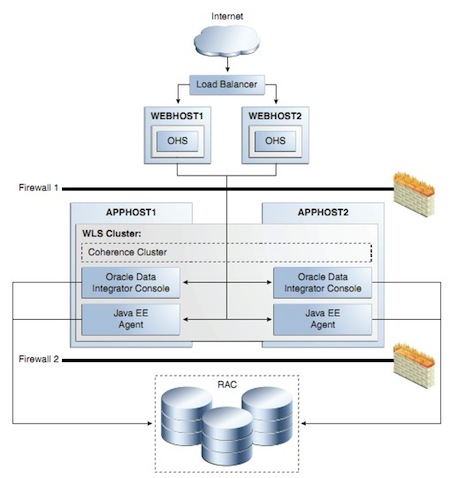
Image from Oracle HA Guide
This post covers Oracle Data Integrator (ODI) High Availability (HA) deployment, for overview of ODI 11g components check my previous post here
ODI high availability uses WebLogic ( with Java EE Agent) which give you Load Sharing, Connection Pooling, and ability to re-start automatically using WebLogic Server. For these reasons my personal recommendation is to move from Standalone Agent (old way of running Agents) to Java EE Agent .
Here are some key points from deploying ODI in High Availability (HA), documentation here
- ODI in High Availability (HA) requires WebLogic and Coherence (Coherence is part of WebLogic Installer). There are three type of WebLogic Installers a) WebLogic only b) WebLogic with Coherence c) WebLogic with Coherence and OEPE (Eclipse Plug-In) so use b or c type WebLogic Installer
- If you are new to WebLogic Domain or WebLogic Cluster feature then first check WebLogic Domain, Managed Server, and Cluster here
- ODI in High Availability (HA) uses WebLogic’s cluster feature (two or more managed server configured in one cluster) where ODI Java Agent run on each managed server.
- Coherence is used enable communication among cluster members (two managed servers with Java EE Agent). Coherence cache is also used to handle scheduler life-cycle (scheduler service uniqueness and migration).
- ODI can be configured in HA either during initial configuration (during WebLogic domain creation) or later (using extend domain feature of WebLogic)
- Load balancer (or HTTP Server in HA) is configured to forward request to WebLogic Managed Servers (running ODI) in cluster. While defining Agents in ODI Studio, you must use Load Balancer host and port number and NOT individual managed server host/port.
High Level Steps to configure ODI in HA
1. Install Oracle RAC Database (this will hold Work and Master Repository Schema)
2. Run RCU to create ODI schema, more on RCU here
3.Install WebLogic on Server1 (this step will create middleware home i.e. MW_HOME)
4. Install ODI on Server1 (install this under MW_HOME), select installation type Java EE Installation
5. Repeat step 3 and 4 on Server2 (If you are intelligent like my client then used shared file system between server1 & server2, then no need to install on server2. Simply register ORACLE_HOME for ODI and oracle_common with oraInventory on server2)
6.On server1, run config.sh from $ODI_ORACLE_HOME/common/bin and select following from domain template
- Oracle Enterprise Manager Plug-in for ODI
- Oracle Enterprise Manager Plug-in
- Oracle Data Integrator Console
- Oracle Data Integrator Agent
- Oracle JRF
7. When you come to screen optional configuration screen - select “Managed Server, Cluster and Machines”
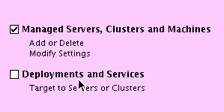
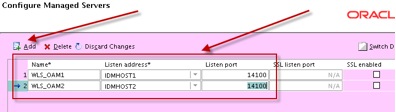
8. On managed server screen add managed server on second node (screen shown below is from my IDAM 11g book so change setting as per your server and port number)
9. On cluster screen, define a cluster and add these two managed servers in cluster (screen shown below is from my IDAM 11g book so change setting as per your requirement)
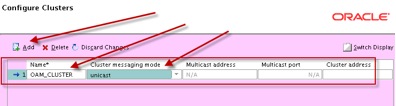
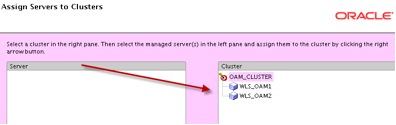
10.After domain creation, configure load balancer (or Oracle HTTP Server - OHS) to forward request to these two managed servers in cluster. If you are planning to use OHS then check steps on how to configure OHS in front of WebLogic Cluster using mod_wl_ohs here
11.Using ODI studio, create Agents in Work Repository (when prompted for hostname and port, use Load balancer or OHS host and port). Use steps mentioned here
12. Create WLS template for Java EE Agent as explained here . This step will create jar file.
13.Create Credential Store (username password for WebLogic Server and Repository), either via Weblogic Scripting Tool (WLST) or via Enterprise Manager here (section 2.5.3)
14.Deploy WLS template created in step 12 by running config.sh again and this time select extend domain and in domain source screen select “Base this domain on an existing template” (select jar file created in step 12)
15. Start Managed Servers (MS) i.e. first MS on server1 and second MS on server 2
16. Test ODI Agent by URL http://loadbalancerhost:loadbalancerport/oraclediagent
ODI - Oracle Data Quality (Trillium) configuration issues on Solaris 10 : Error creating Loader Connection pkgOracleAdapter.so ld.so.1 libclntsh.so.10.1
Oracle Data Quality and Profiling is product from Trillium and Oracle ship it as part of Oracle Data Integrator (ODI) software. More on ODI here and here
ODI - Oracle Data Integrator
ODP - Oracle Data Profiling
ODQ - Oracle Data Quality
Entity creation failed while creating Loader Connection to Data source (Oracle Database) - For more information on Entity, Metabase or Loader Connection in ODQ/ODP check Chapter 3 of Getting Started with Oracle Data Profiling and Oracle Data Quality for Data Integrator Guide here
.
How to connect to Oracle Database from ODQ/ODP (define Loader Connection) :
1. Install Oracle Database Client on Server where ODQ/ODP is running (ODQ/ODP user should at least have read access on tnsnames.ora and library files).
2. Define ORACLE_HOME variable in .TSDiscovery file under user owing ODQ/ODP software.
3. Define TNS alias (tnsnames.ora) in Oracle Database Client to connect to remote Oracle Database
4. Create a Metabase (or use existing metabase) using Metabase Manager
5. Define Load Connection using : Tools -> Add Loader Connection
.

.

6. Create Entity and use Loader Connection created above.
Entity creation failed with error message, on checking logs on ODQ/ODP server under
$ORACLE_ODI_INSTALLATION/ oracledq/ metabase_data/ logs/ mtb_server.log
_________________
2009-12-15 11:50:03 22277 WARNING CONNECT Remote oracle connection failure, couldn’t load file “/u01/ oracledq/ metabase_server/ metabase/ lib/ pkgOracleAdapter/ pkgOracleAdapter.so”: ld.so.1: server.bin: fatal: libclntsh.so.10.1: open failed: No such file or directory - couldn’t load file “/u01/ oracledq/ metabase_server/ metabase/ lib/ pkgOracleAdapter/ pkgOracleAdapter.so”: ld.so.1: server.bin: fatal: libclntsh.so.10.1: open failed: No such file or directory
_________________
Issue : libclntsh.so.10.1 exists under $ORACLE_CLIENT/[lib or lib32] but $ORACLE_HOME variable was not defined under .TSDiscovery
Fix : Stop Oracle Data Quality and Profiling Server , add ORACLE_HOME variable in .TSDiscovery and start ODQ/ODP server
.
What is .TSDiscovery file in ODQ/ODP component of ODI ?
.TSDiscovery is hidden file (as represented by dot in front) on Unix/Linux server under $HOME for user owning ODI (with ODQ/ODP) or Oracle Data Quality & Profiling product.
ODQ/ODP server uses TSDiscovery file to gather environment information like LD_LIBRARY_PATH, TS_QUALITY, ODI_JAVA_HOME or ORACLE_HOME .
.
ODP - Oracle Data Profiling
ODQ - Oracle Data Quality
Entity creation failed while creating Loader Connection to Data source (Oracle Database) - For more information on Entity, Metabase or Loader Connection in ODQ/ODP check Chapter 3 of Getting Started with Oracle Data Profiling and Oracle Data Quality for Data Integrator Guide here
.
How to connect to Oracle Database from ODQ/ODP (define Loader Connection) :
1. Install Oracle Database Client on Server where ODQ/ODP is running (ODQ/ODP user should at least have read access on tnsnames.ora and library files).
2. Define ORACLE_HOME variable in .TSDiscovery file under user owing ODQ/ODP software.
3. Define TNS alias (tnsnames.ora) in Oracle Database Client to connect to remote Oracle Database
4. Create a Metabase (or use existing metabase) using Metabase Manager
5. Define Load Connection using : Tools -> Add Loader Connection
.
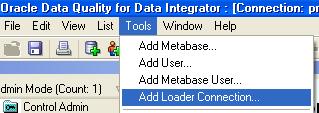
.

6. Create Entity and use Loader Connection created above.
Entity creation failed with error message, on checking logs on ODQ/ODP server under
$ORACLE_ODI_INSTALLATION/ oracledq/ metabase_data/ logs/ mtb_server.log
_________________
2009-12-15 11:50:03 22277 WARNING CONNECT Remote oracle connection failure, couldn’t load file “/u01/ oracledq/ metabase_server/ metabase/ lib/ pkgOracleAdapter/ pkgOracleAdapter.so”: ld.so.1: server.bin: fatal: libclntsh.so.10.1: open failed: No such file or directory - couldn’t load file “/u01/ oracledq/ metabase_server/ metabase/ lib/ pkgOracleAdapter/ pkgOracleAdapter.so”: ld.so.1: server.bin: fatal: libclntsh.so.10.1: open failed: No such file or directory
_________________
Issue : libclntsh.so.10.1 exists under $ORACLE_CLIENT/[lib or lib32] but $ORACLE_HOME variable was not defined under .TSDiscovery
Fix : Stop Oracle Data Quality and Profiling Server , add ORACLE_HOME variable in .TSDiscovery and start ODQ/ODP server
.
What is .TSDiscovery file in ODQ/ODP component of ODI ?
.TSDiscovery is hidden file (as represented by dot in front) on Unix/Linux server under $HOME for user owning ODI (with ODQ/ODP) or Oracle Data Quality & Profiling product.
ODQ/ODP server uses TSDiscovery file to gather environment information like LD_LIBRARY_PATH, TS_QUALITY, ODI_JAVA_HOME or ORACLE_HOME .
.
Upgrade Oracle Data Integrator 10.1.3.5 to 10.1.3.6 (9377717)
If you are new to ODI (Oracle Data Integrator) then first look at ODI Architecture and Installation here
1. Oracle Data Integrator (ODI) 10.1.3.6 is now available as patch 9377717
2. ODI 10.1.3.6 (9377717) is patchset and NOT complete software . You can apply it on top of existing 10.1.3.5.X
3. To check current version of ODI you can open Designer (designer.sh), then select Help -> About Oracle Database Integrator
4. ODI consists of three components -
i) Oracle Data Integrator (ODI- from Sunopsis)
ii) Oracle Data Quality (ODQ - from Trillium)
iii) Oracle Data Profiling (ODP - from Trillium)
10.1.3.6 version of ODI does NOT include fixes for ODP or ODQ.
5. During Repository upgrade, repository size may be up to double of its current size so ensure that you have enough space in Database (ODI repository).
6. ODI consists of one Master Repository and one or more Work Repository so upgrade
i) Master Repository using mupgarde.[sh|bat]
ii) Work Repository using Topology Manager [right click on work repository and click upgrade]
Repeat upgrade on all your work repository
For step by step upgrade steps to ODI 10.1.3.6 follow readme of patch 9377717
2. ODI 10.1.3.6 (9377717) is patchset and NOT complete software . You can apply it on top of existing 10.1.3.5.X
3. To check current version of ODI you can open Designer (designer.sh), then select Help -> About Oracle Database Integrator
4. ODI consists of three components -
i) Oracle Data Integrator (ODI- from Sunopsis)
ii) Oracle Data Quality (ODQ - from Trillium)
iii) Oracle Data Profiling (ODP - from Trillium)
10.1.3.6 version of ODI does NOT include fixes for ODP or ODQ.
5. During Repository upgrade, repository size may be up to double of its current size so ensure that you have enough space in Database (ODI repository).
6. ODI consists of one Master Repository and one or more Work Repository so upgrade
i) Master Repository using mupgarde.[sh|bat]
ii) Work Repository using Topology Manager [right click on work repository and click upgrade]
Repeat upgrade on all your work repository
For step by step upgrade steps to ODI 10.1.3.6 follow readme of patch 9377717
Oracle Data Integrator (ODI)/Sunopsis - Architecture & Installation overview
Oracle Data Integrator (ODI) is - product from Sunopsis acquired by Oracle in 2006 and now part of Oracle Fusion Middleware Family.
1. ODI is built on E-LT(Extract , Load and Transform) Architecture.
2. Oracle Data Integrator 10g (10.1.3.5.0) suite includes three products
a) Oracle Data Integrator
b) Oracle Data Quality and
c) Oracle Data Profiling
3. ODI uses Database as ETL (Extract, Transform & Load) engine thus eliminates requirement of proprietary ELT engine
4. Oracle Data Integrator Enterprise Edition (ODIEE) is combination of ODI (Oracle Data Integrator) and OWB (Oracle Warehouse Builder)
Oracle Data Integrator Architecture
Oracle Data Integrator (ODI) consists of following products
1. Repository - is relational Databases to store objects used/configured or developed by ODI. There are two type of Repository Master Repository (one and only one) and Work Repository (one or more)
a) Master Repository - There is only one Master repository and used to store security information, topology information (servers..) and versions of the Objects. All Modules (designer, operator, topology & security) have access to master repository.
b) Work Repository- Work related objects (project objects) are stored in Work Repository like Models, Projects and run-time information. There could be multiple work repository per installation and all linked to single master repository. Work Repository is accessed by Designer/Operator Module and run time agent.
2. Graphical Modules -
a) Designer (designer.sh|bat)- All project development takes place in this module and this is the place where database and application metadata are imported and defined.
b) Operator (operator.sh|bat) - usually to monitor production ODI instance and shows execution logs, rows processed and execution statistics
c) Topology Manager (topology.sh|bat)- To register servers, schema and agents in master repository.
d) Security Manager (security.sh|bat) - To manage user profiles and their access privileges.
3. Runtime Component / Scheduler Agent - scheduler agent coordinates execution of scenarios. Scheduler Agent retrieves code from execution repository and then requests database server, scripting engine or operating system server to execute that code.
4. Metadata Navigator (MN)- is Web (JSP/Servlet) application (available as oracledimn.war) that enables access to repository through Web Interface (Web Browser). MetaData Navigator (MN) requires Application Server and you deploy MN application oracledimn.war on pre-installed application server (Tom Cat, OAS, WebLogic). This is optional component.
.
ODI Server Installation
1. Download ODI 10.1.3.4 software from here
2. Unzip software
3.Start Installation using $unizp_location/ setup/ <your_os>/ Disk1/ install/ runInstaller or
$unzip_location/ setup/ <your_os>/ setup.sh for Unix or setup.exe for windows
4. Select a product to install, options are
a) Oracle Data Integrator, Oracle Data Profiling, Oracle Data Quality
b) Oracle Data Integrator
c) Oracle Data Profiling
d) Oracle Data Quality for Oracle Data Integrator
5. Select Installation Type , options are (depending on above selection)
a) Complete - covers client and server components for ODI Suite
b) Client - User Interfaces for ODI suite
c) Server - run time agent for ODI, Metabase and Servers for Data Profiling and Data Quality
6. Specify Oracle Home - location to install ODI software binaries (code set)
7. Provide repository & Schedule Port and UserName password to administer Repository - This step is applicable only for option b), c) or d) from 4) Select a product to install
8. Run root.sh from root account (on Unix environment)
.
ODI Metadata Navigator Installation
Metadata Navigator (MN) is Web (JSP/Servlet) application (available as oracledimn.war) that enables access to repository through Web Interface (Web Browser). MetaData Navigator (MN) requires Application Server and you deploy MN application oracledimn.war on pre-installed application server (Tom Cat, OAS, WebLogic).
1. Install Application Server - Tomcat, OAS, WebLogic, IBM Websphere ….
2. Deploy oracledimn.war($SOFTWARE/ setup/ Manual/ oracledimn.war) to application server
3. Install JDBC Driver
4. Configure Metadata Navigator Connection to connect to your ODI repository (snps_login_work.xml)
.
What next after installation ?
1.Create mater and work repository using $ORACLE_HOME/oracledi/bin/repcreate.sh
and then access them using Topology Manager or Designer using $ORACLE_HOME/oracledi/bin/ topology.sh & designer.sh resp.
1. ODI is built on E-LT(Extract , Load and Transform) Architecture.
2. Oracle Data Integrator 10g (10.1.3.5.0) suite includes three products
a) Oracle Data Integrator
b) Oracle Data Quality and
c) Oracle Data Profiling
3. ODI uses Database as ETL (Extract, Transform & Load) engine thus eliminates requirement of proprietary ELT engine
4. Oracle Data Integrator Enterprise Edition (ODIEE) is combination of ODI (Oracle Data Integrator) and OWB (Oracle Warehouse Builder)
Oracle Data Integrator Architecture
Oracle Data Integrator (ODI) consists of following products
1. Repository - is relational Databases to store objects used/configured or developed by ODI. There are two type of Repository Master Repository (one and only one) and Work Repository (one or more)
a) Master Repository - There is only one Master repository and used to store security information, topology information (servers..) and versions of the Objects. All Modules (designer, operator, topology & security) have access to master repository.
b) Work Repository- Work related objects (project objects) are stored in Work Repository like Models, Projects and run-time information. There could be multiple work repository per installation and all linked to single master repository. Work Repository is accessed by Designer/Operator Module and run time agent.
2. Graphical Modules -
a) Designer (designer.sh|bat)- All project development takes place in this module and this is the place where database and application metadata are imported and defined.
b) Operator (operator.sh|bat) - usually to monitor production ODI instance and shows execution logs, rows processed and execution statistics
c) Topology Manager (topology.sh|bat)- To register servers, schema and agents in master repository.
d) Security Manager (security.sh|bat) - To manage user profiles and their access privileges.
3. Runtime Component / Scheduler Agent - scheduler agent coordinates execution of scenarios. Scheduler Agent retrieves code from execution repository and then requests database server, scripting engine or operating system server to execute that code.
4. Metadata Navigator (MN)- is Web (JSP/Servlet) application (available as oracledimn.war) that enables access to repository through Web Interface (Web Browser). MetaData Navigator (MN) requires Application Server and you deploy MN application oracledimn.war on pre-installed application server (Tom Cat, OAS, WebLogic). This is optional component.
.
ODI Server Installation
1. Download ODI 10.1.3.4 software from here
2. Unzip software
3.Start Installation using $unizp_location/ setup/ <your_os>/ Disk1/ install/ runInstaller or
$unzip_location/ setup/ <your_os>/ setup.sh for Unix or setup.exe for windows
4. Select a product to install, options are
a) Oracle Data Integrator, Oracle Data Profiling, Oracle Data Quality
b) Oracle Data Integrator
c) Oracle Data Profiling
d) Oracle Data Quality for Oracle Data Integrator
5. Select Installation Type , options are (depending on above selection)
a) Complete - covers client and server components for ODI Suite
b) Client - User Interfaces for ODI suite
c) Server - run time agent for ODI, Metabase and Servers for Data Profiling and Data Quality
6. Specify Oracle Home - location to install ODI software binaries (code set)
7. Provide repository & Schedule Port and UserName password to administer Repository - This step is applicable only for option b), c) or d) from 4) Select a product to install
8. Run root.sh from root account (on Unix environment)
.
ODI Metadata Navigator Installation
Metadata Navigator (MN) is Web (JSP/Servlet) application (available as oracledimn.war) that enables access to repository through Web Interface (Web Browser). MetaData Navigator (MN) requires Application Server and you deploy MN application oracledimn.war on pre-installed application server (Tom Cat, OAS, WebLogic).
1. Install Application Server - Tomcat, OAS, WebLogic, IBM Websphere ….
2. Deploy oracledimn.war($SOFTWARE/ setup/ Manual/ oracledimn.war) to application server
3. Install JDBC Driver
4. Configure Metadata Navigator Connection to connect to your ODI repository (snps_login_work.xml)
.
What next after installation ?
1.Create mater and work repository using $ORACLE_HOME/oracledi/bin/repcreate.sh
and then access them using Topology Manager or Designer using $ORACLE_HOME/oracledi/bin/ topology.sh & designer.sh resp.
Oracle Data Integrator
The Oracle Data Integration Suite at-a-glance:
Oracle adds Data Integration Suite to middleware family
Source: http://searchoracle.techtarget.com/news/article/0,289142,sid41_gci1297749,00.html
The suite also combines Oracle's SOA-based Business Process Management and change management capabilities with Oracle-Hyperion's Master Data Management (MDM) capabilities. Oracle acquired Hyperion last March as part of an ongoing, high-profile acquisition spree.
Potential Data Integration Suite buyers also have the option to incorporate Oracle's in-memory data grid technology. Analysts say that storing data in-memory reduces performance overhead and speeds up the process of retrieving data that exists on the virtual or middleware layer.
The new suite, which comes with the Oracle Data Integrator E-LT technology, also incorporates two relatively new products -- Oracle Data Profiling and Oracle Data Quality for Oracle Data Integrator -- which were developed in conjunction with Harte-Hanks Trillium Software.
Oracle says the two products extend the data quality features of Data Integrator to provide added data governance capabilities.
Oracle Data Profiling is a quality monitoring tool that allows users to assess the quality of their data through metrics, to discover or infer rules based on this data, and to monitor the evolution of data quality over time, according to Oracle.
Oracle Data Quality for Data Integrator employs a rules-based engine to help users ensure data quality and conduct name and address cleansing as data integration efforts move forward.
With the new Data Integration Suite, Oracle is sending the message that "no matter what solution you have, no matter where you go, you don't have to worry about where your data is," Wang said. "You can keep a single source of truth with Oracle."
The new Oracle Data Integration Suite includes the following:-
- Oracle Data Integrator
- Oracle BPEL Process Manager
- Oracle Enterprise Service Bus
- Oracle Application Server
- Oracle-Hyperion Data Relationship Manager
- Oracle B2B Engine
- Oracle Business Rule Engine
Optional features are priced separately and include:
- Oracle Data Quality for Data Integrator
- Oracle Data Profiling
- Coherence Data Grid
- Legacy Adapters
- Applications Adapters
- B2B Adapters
- Unstructured Content Adapters
Oracle Data Integrator 10g Suite includes:
Oracle Data Integrator Agent
Oracle Data Integrator Designer
Oracle Data Integrator Operator
Oracle Data Integrator Security Manager
Oracle Data Integrator Topology Manager
Oracle Data Integrator Metadata Navigator
Oracle Data Integrator Lightweight Designer
Oracle Data Integrator Driver for XML
Oracle Data Integrator Driver for LDAP
Oracle Data Integrator Knowledge Modules
Oracle Data Profiling
Oracle Data Quality for Data Integrator
Good to start with:
a. ODI OTN Article: http://www.oracle.com/technology/pub/articles/rittman-odi.html
b. Very useful White paper to understand Data Services and ODI Features -
http://me.jtpollock.us/pubs/
c. Gartner Research -
http://www.gartner.com/DisplayDocument?id=599407&ref=g_sitelink
d. ODI Documentation -
http://www.oracle.com/technology/products/oracle-data-integrator/10.1.3/htdocs/
1013_support.html
e. ODI Main Product Page -
http://www.oracle.com/technology/products/oracle-data-integrator/index.html
Will write more on each of interesting ODI features like CDC, developing Custom Knowledge Modules, Human Workflow integration, and developing BI dashboards, and many more.
Source: http://searchoracle.techtarget.com/news/article/0,289142,sid41_gci1297749,00.html
The suite also combines Oracle's SOA-based Business Process Management and change management capabilities with Oracle-Hyperion's Master Data Management (MDM) capabilities. Oracle acquired Hyperion last March as part of an ongoing, high-profile acquisition spree.
Potential Data Integration Suite buyers also have the option to incorporate Oracle's in-memory data grid technology. Analysts say that storing data in-memory reduces performance overhead and speeds up the process of retrieving data that exists on the virtual or middleware layer.
The new suite, which comes with the Oracle Data Integrator E-LT technology, also incorporates two relatively new products -- Oracle Data Profiling and Oracle Data Quality for Oracle Data Integrator -- which were developed in conjunction with Harte-Hanks Trillium Software.
Oracle says the two products extend the data quality features of Data Integrator to provide added data governance capabilities.
Oracle Data Profiling is a quality monitoring tool that allows users to assess the quality of their data through metrics, to discover or infer rules based on this data, and to monitor the evolution of data quality over time, according to Oracle.
Oracle Data Quality for Data Integrator employs a rules-based engine to help users ensure data quality and conduct name and address cleansing as data integration efforts move forward.
With the new Data Integration Suite, Oracle is sending the message that "no matter what solution you have, no matter where you go, you don't have to worry about where your data is," Wang said. "You can keep a single source of truth with Oracle."
The new Oracle Data Integration Suite includes the following:-
- Oracle Data Integrator
- Oracle BPEL Process Manager
- Oracle Enterprise Service Bus
- Oracle Application Server
- Oracle-Hyperion Data Relationship Manager
- Oracle B2B Engine
- Oracle Business Rule Engine
Optional features are priced separately and include:
- Oracle Data Quality for Data Integrator
- Oracle Data Profiling
- Coherence Data Grid
- Legacy Adapters
- Applications Adapters
- B2B Adapters
- Unstructured Content Adapters
Oracle Data Integrator 10g Suite includes:
Oracle Data Integrator Agent
Oracle Data Integrator Designer
Oracle Data Integrator Operator
Oracle Data Integrator Security Manager
Oracle Data Integrator Topology Manager
Oracle Data Integrator Metadata Navigator
Oracle Data Integrator Lightweight Designer
Oracle Data Integrator Driver for XML
Oracle Data Integrator Driver for LDAP
Oracle Data Integrator Knowledge Modules
Oracle Data Profiling
Oracle Data Quality for Data Integrator
Good to start with:
a. ODI OTN Article: http://www.oracle.com/technology/pub/articles/rittman-odi.html
b. Very useful White paper to understand Data Services and ODI Features -
http://me.jtpollock.us/pubs/
c. Gartner Research -
http://www.gartner.com/DisplayDocument?id=599407&ref=g_sitelink
d. ODI Documentation -
http://www.oracle.com/technology/products/oracle-data-integrator/10.1.3/htdocs/
1013_support.html
e. ODI Main Product Page -
http://www.oracle.com/technology/products/oracle-data-integrator/index.html
Will write more on each of interesting ODI features like CDC, developing Custom Knowledge Modules, Human Workflow integration, and developing BI dashboards, and many more.
Subscribe to:
Posts (Atom)